Skip to content
View in the app

A better way to browse. Learn more.

Gay Guides Forum

A full-screen app on your home screen with push notifications, badges and more.

To install this app on iOS and iPadOS
  1. Tap the Share icon in Safari
  2. Scroll the menu and tap Add to Home Screen.
  3. Tap Add in the top-right corner.
To install this app on Android
  1. Tap the 3-dot menu (⋮) in the top-right corner of the browser.
  2. Tap Add to Home screen or Install app.
  3. Confirm by tapping Install.

thaiophilus

Members
  1.    TMax reacted to a post in a topic: E gates at Suvarnabhumi!
  2.    thaiophilus reacted to a post in a topic: E gates at Suvarnabhumi!
  3. They also use mercury amalgam...
  4. What's wrong with Broadmoor?
  5. You might very well think that; I could not possibly comment.
  6. This is The Sun we're talking about. "The reporter", or his AI, probably never left his London office.
  7. The first four words are "The Sun has reported" so everything that follows may be sheer fantasy.
  8.    TotallyOz reacted to a post in a topic: Forum Look
  9. That's better. Thank you.
  10.    thaiophilus reacted to a post in a topic: Forum Look
  11. A 777, apparently. https://www.emirates.com/english/destinations/sai/bkk/flights-from-siem-reap-to-bangkok/
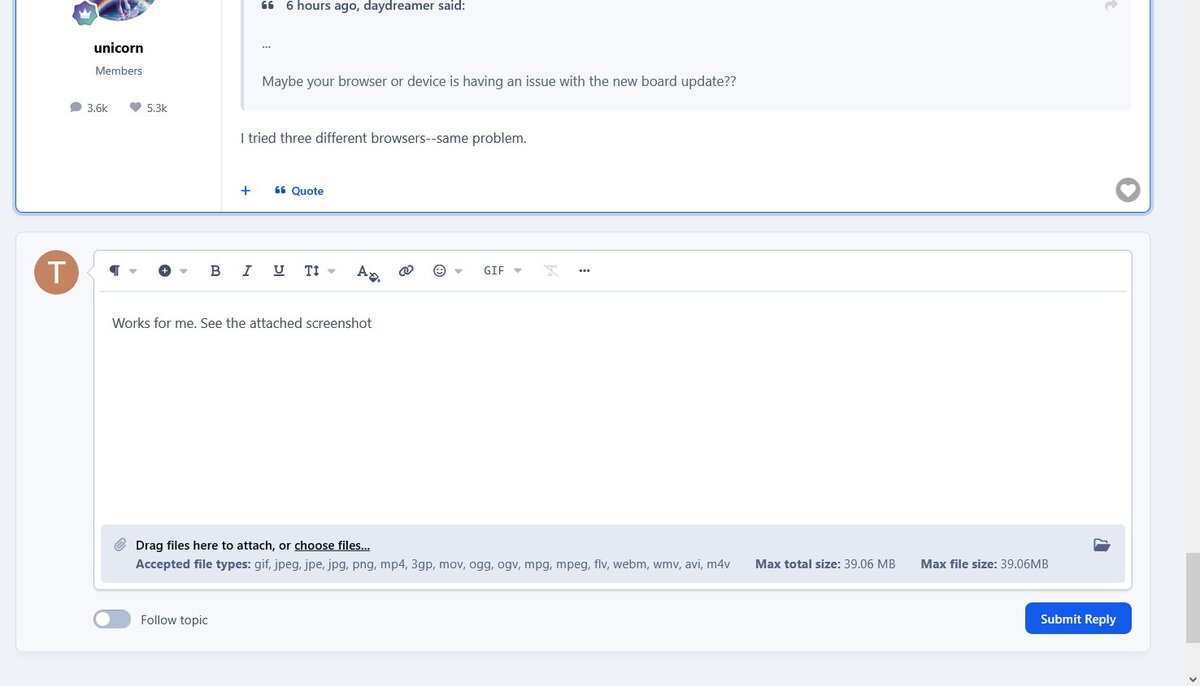
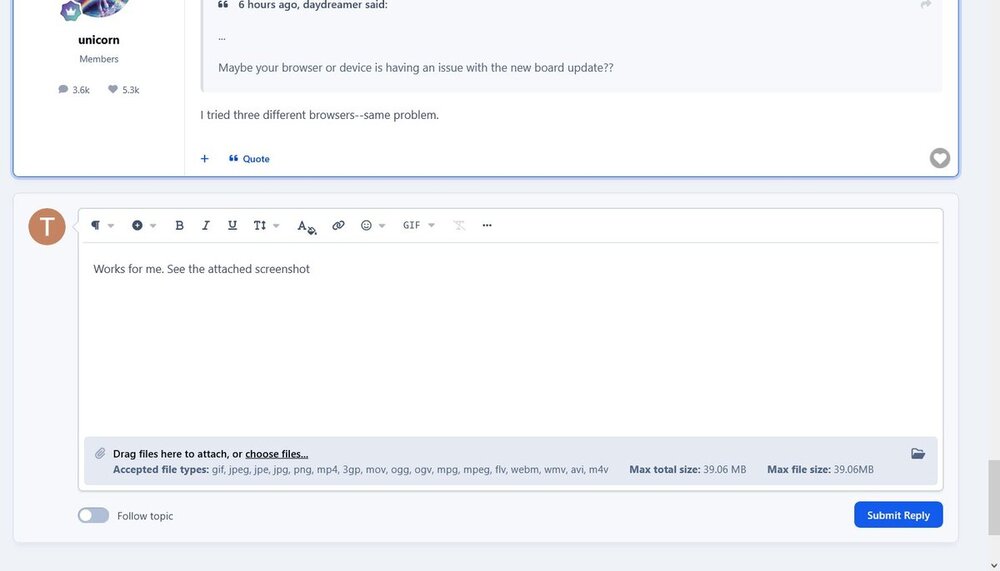
  12. Works for me (Firefox, Windows 10). See the attached screenshot. I clicked choose files..., and loaded from a local file on my PC.
  13.    a-447 reacted to a post in a topic: PP massage scene updates (08/26)?
  14.    khaolakguy reacted to a post in a topic: PP massage scene updates (08/26)?
  15. According to https://sotwe.world/ Sotwe is a web-based Twitter viewer that lets users browse public tweets, trending topics, and user profiles without creating or logging into a Twitter account.
  16. [cough] You might not want to live in CM year-round, particularly March to April.
  17. thaiophilus replied to Olddaddy's topic in Gay Bangkok
    How about... running away from the scammers?
  18.    thaiophilus reacted to a post in a topic: Scam ?
  19. Ha. I acquired all Mary R Haas's books on Thai nearly 30 years ago. They were for a long time the definitive English-language scholarly resources on the Thai language, though naturally the language has changed in the decades since she compiled them. (Her main academic field was actually Native American languages, not Thai, which she only took up during WWII to help the war effort. Nothing if not thorough, she also acquired a Thai husband 😀) Incidentally, don't be fooled by the title of her Thai-English Students' Dictionary. On opening its 634 dense pages you soon realise that "Student" was intended to mean "PhD scholar", not "beginner" .
  20. Nothing tricky about that. When Pali is transliterated into Thai script, no tone marks are used because Pali doesn't need them. Thai readers who don't speak Pali therefore automatically pronounce the Pali words according to the Thai rules for default tones, not how a native Pali speaker would say them. Yes, thank you, I have studied the tone rules (for a definitive work see Chapter III of The Thai System of Writing, by Mary R Haas, which I have in front of me right now) so I'm well aware that there are many syllables for which no modifying tone mark is needed. That's obvious just by looking at any typical bit of written Thai. (For example: อย่าสอนจระเข้ว่ายน้ำ has seven syllables but only four have tone marks.) Nevertheless, many other syllables do need a modifying tone mark. But I think you've missed my point, which is that when you see sixty-four consecutive syllables with no tone marks at all something is going on, and the something in this case is that the language isn't Thai.
  21. One clue is that กรุงเทพมหานคร อมรรัตนโกสินทร์ มหินทรายุธยามหาดิลก ภพนพรัตน์ ราชธานีบุรีรมย์ อุดมราชนิเวศน์ มหาสถาน อมรพิมาน อวตารสถิต สักกะทัตติยะ วิษณุกรรมประสิทธิ์ has 64 syllables but not a single tone mark. Thai is tonal, but Pali is not.

Account

Navigation

Search

Search

Configure browser push notifications

Chrome (Android)
  1. Tap the lock icon next to the address bar.
  2. Tap Permissions → Notifications.
  3. Adjust your preference.
Chrome (Desktop)
  1. Click the padlock icon in the address bar.
  2. Select Site settings.
  3. Find Notifications and adjust your preference.